Setting Up Task Templates
- Open a customer’s detail page → Maintenance Tasks → Customize Tasks
- Click Add Task
- Configure the task:
- Task Name - What needs to be done
- Category - Group related tasks together
- Frequency - How often this task recurs
Task Frequencies
| Frequency | Schedule |
|---|---|
| Weekly | Every week |
| Bi-Weekly | Every 2 weeks |
| Monthly | Every month |
| Bi-Monthly | Every 2 months |
| Quarterly | Every 3 months |
| Semi-Annually | Every 6 months |
| Annually | Once per year |
Custom Start Month
For tasks that run less frequently than monthly, you can set a custom start month. This controls which months the task appears in.Completing Tasks
- Open a customer’s detail page
- Navigate to the Maintenance tab
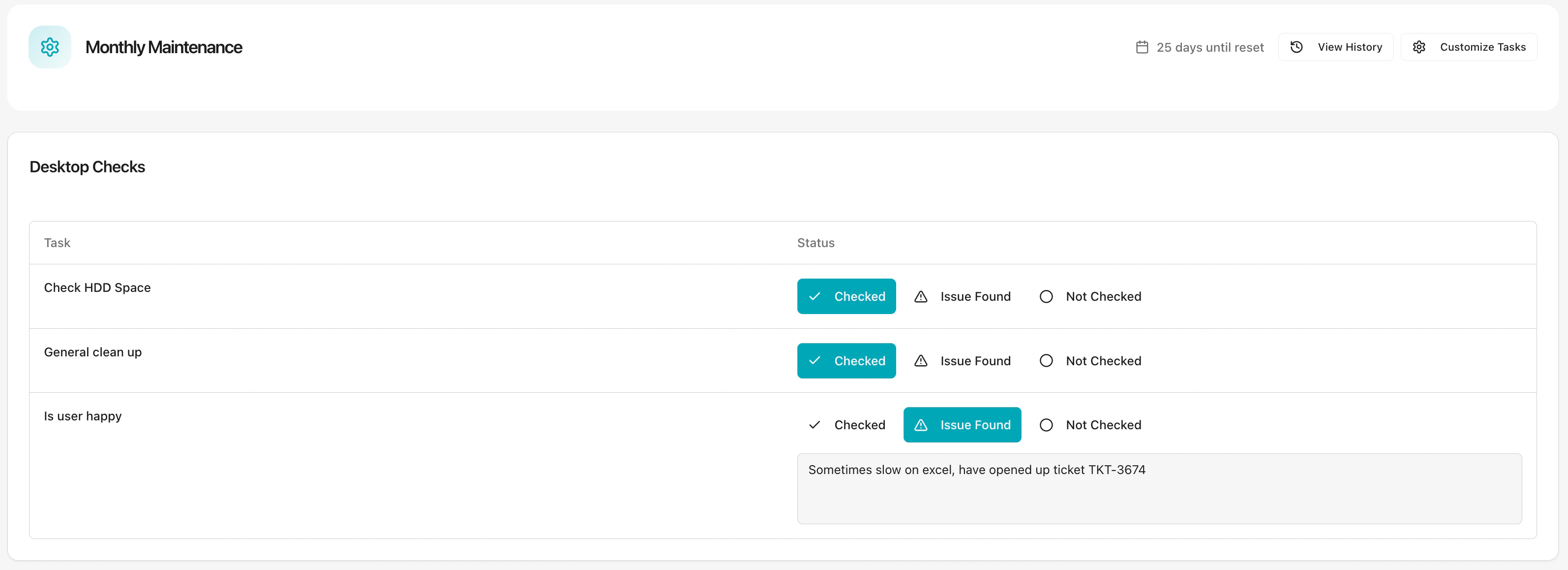
- Check off completed tasks
- Mark any issues found
Task Statuses
- Unchecked - Not yet completed
- Checked - Completed successfully
- Issue - Completed but an issue was found
Monthly Reset
Tasks reset based on your MSP’s configured reset day (default: 1st of the month). Configure this in Settings → General.History
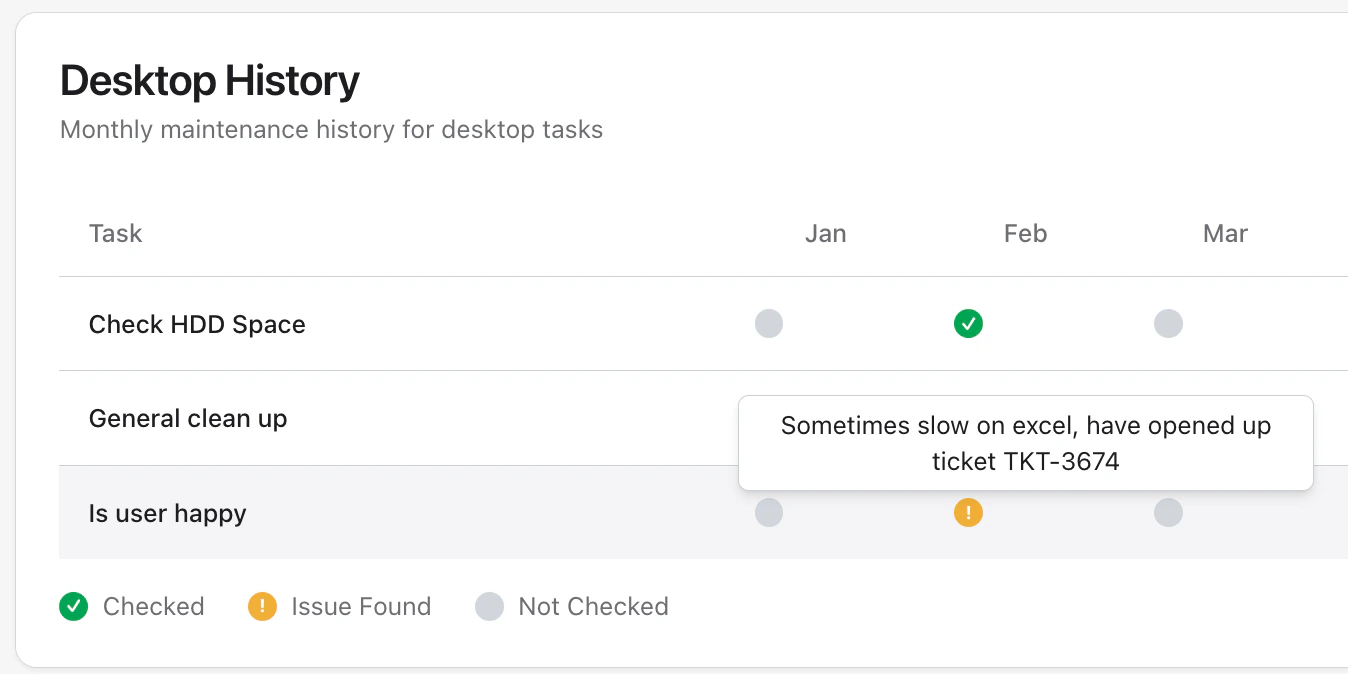
Check out past maintenance on the history tab.